Budget Apps vs Spreadsheets vs Paper: Which Actually Works?
By Nora Bennett · July 18, 2026
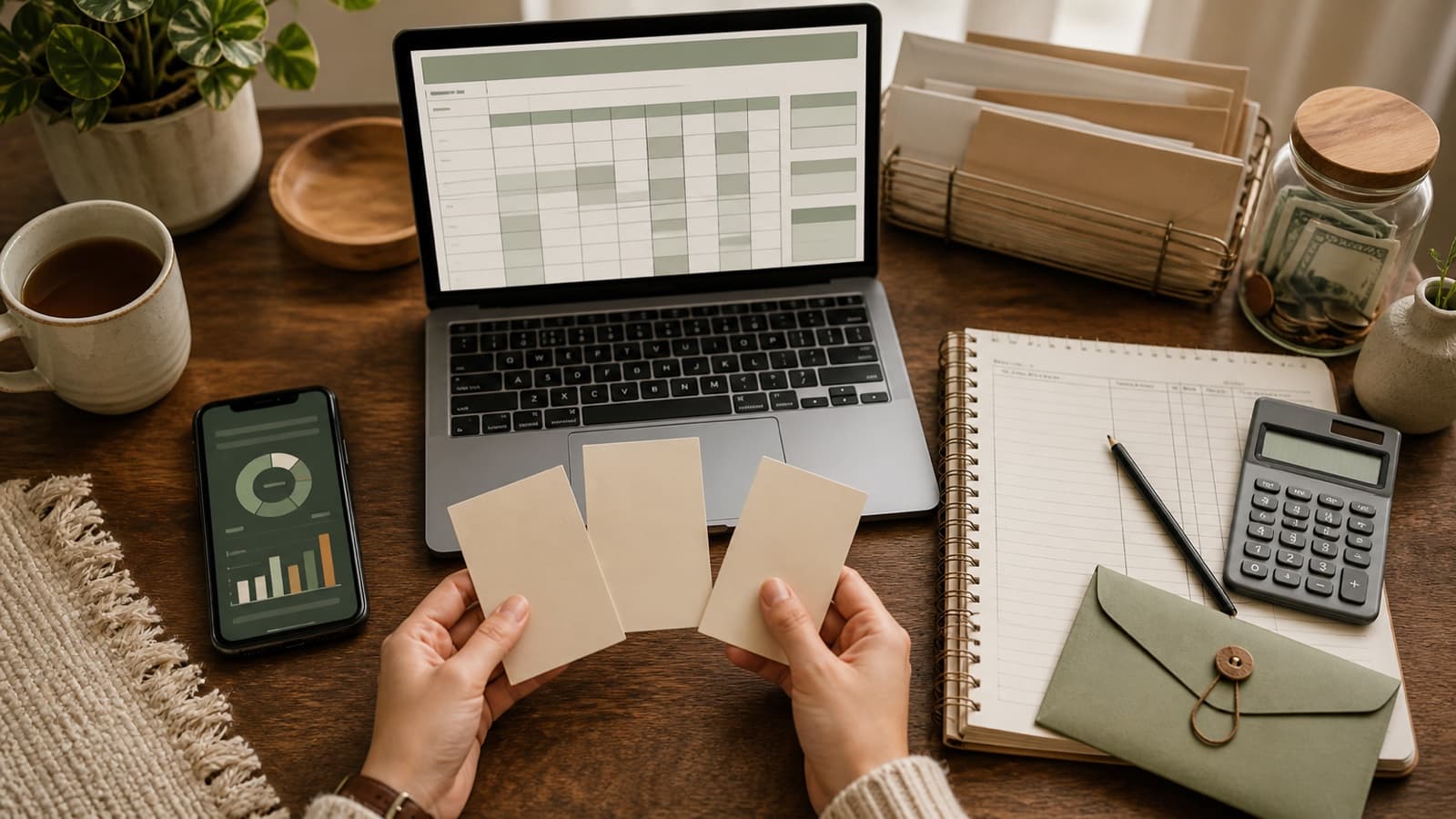
The best budgeting tool is not the one with the most features. It is the one that helps you make decisions before spending, shows what remains while the month is still happening, and is easy enough to review regularly.
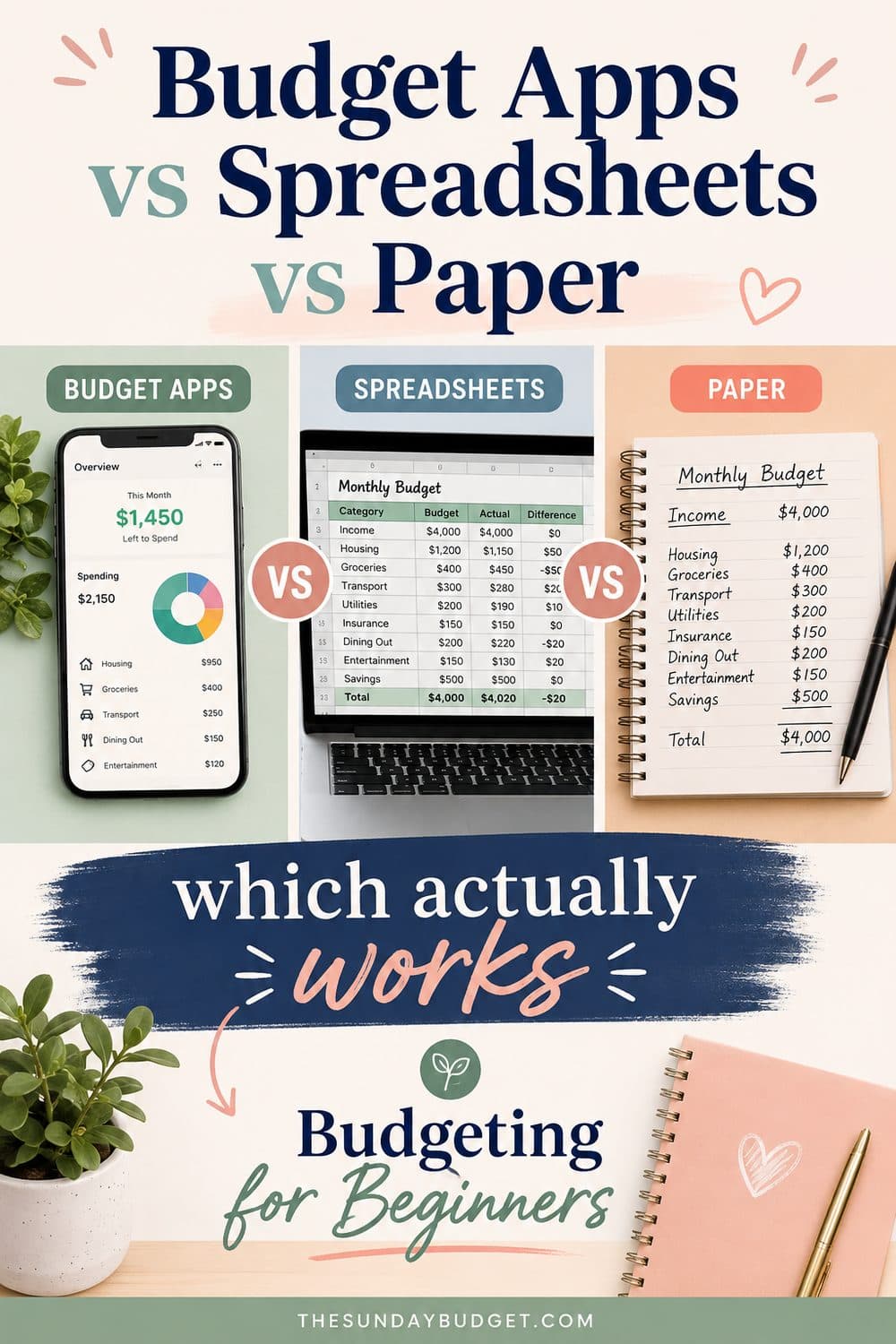
That tool may be a connected budgeting app, a manual app, a spreadsheet, a notebook, or a combination. Apps are not automatically effortless. Spreadsheets are not automatically private. Paper is not automatically simple. Each option changes where the work happens and what can go wrong.
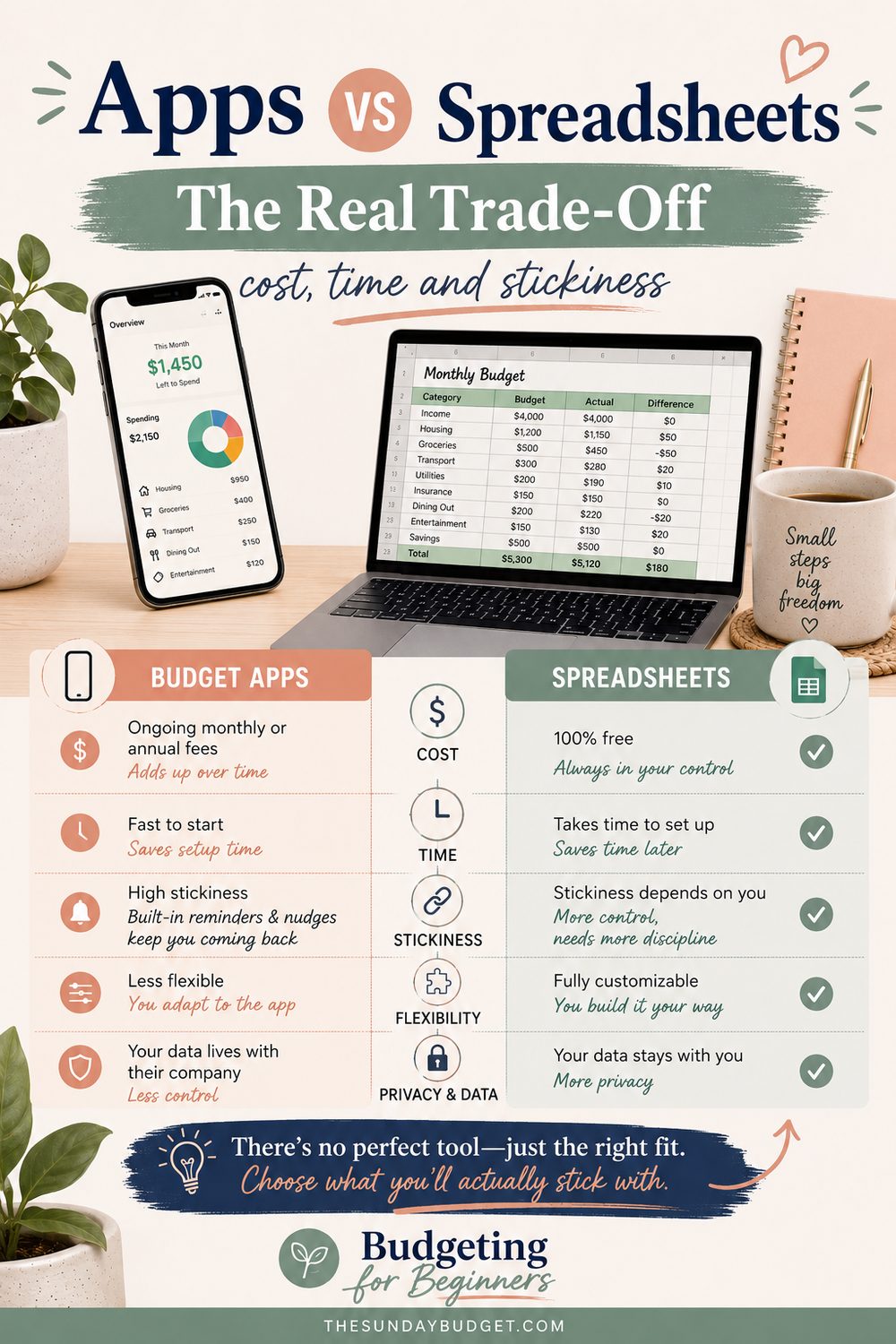
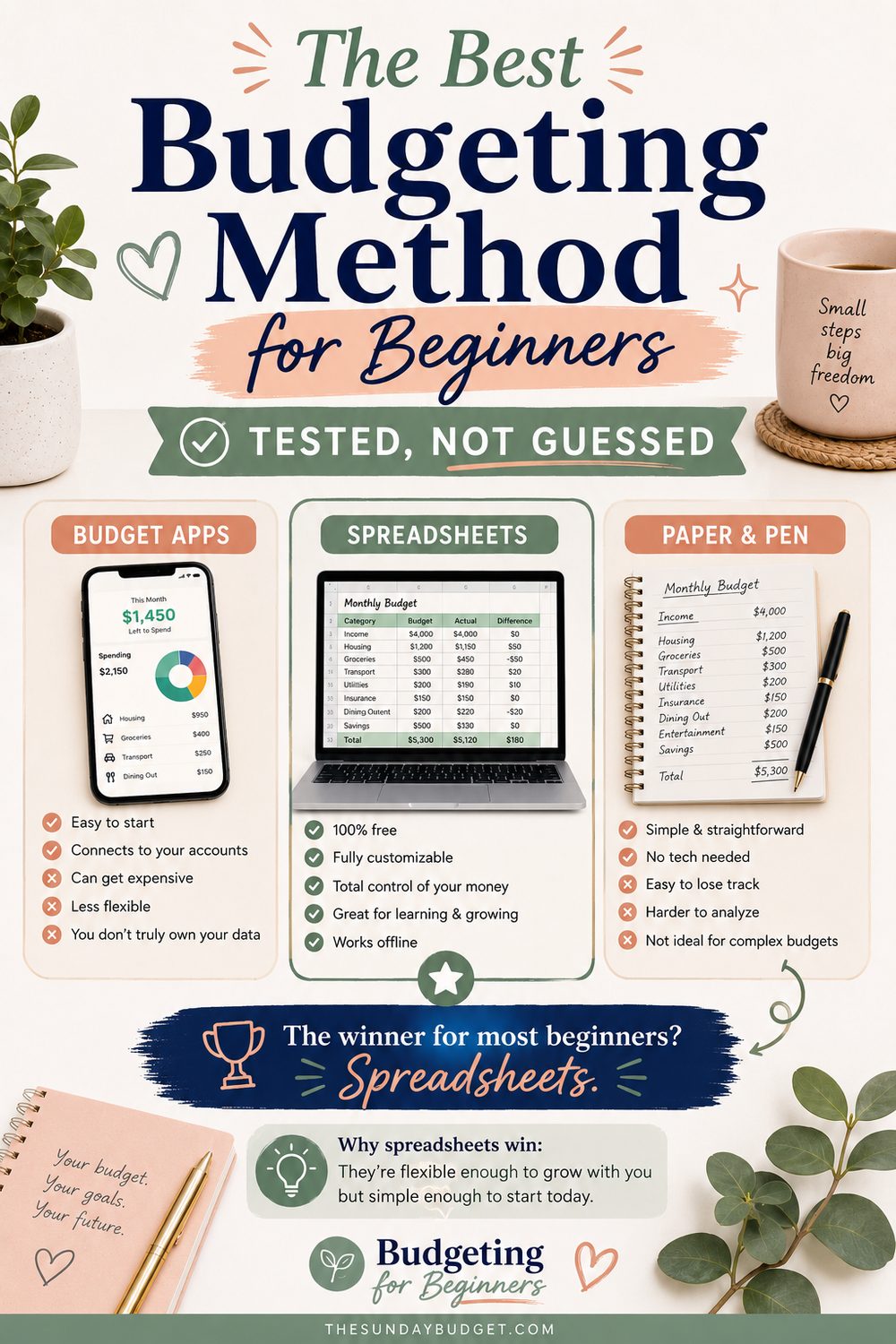
This guide compares budget apps, spreadsheets, and paper honestly for 2026: setup time, transaction entry, planning, privacy, cost, accessibility, shared finances, irregular income, and long-term maintenance. It also includes three hybrid systems and a 30-day test so you can choose with evidence rather than downloading another tool and hoping.
Start with the budgeting job, not the format
A complete budgeting system needs to perform five jobs:
- Plan: Decide how available income will be used.
- Track: Record or import what actually happened.
- Compare: Show planned, spent, and remaining amounts.
- Review: Surface bills, category problems, and upcoming decisions.
- Remember: Preserve enough history to improve the next plan.
Many tools perform one or two jobs extremely well. A bank app may show transactions immediately but provide limited category planning. A notebook may support thoughtful planning but require manual totals. A spreadsheet may calculate everything but remain untouched if entry feels inconvenient.
The right question is not “Which tool is best?” It is “Which tool will perform these five jobs with the least friction for this household?”
The quick comparison
| Decision factor | Connected budget app | Manual app | Spreadsheet | Paper |
|---|---|---|---|---|
| Transaction entry | Mostly automatic | Manual | Manual or imported | Manual |
| Planning before spending | Varies by product | Usually available | Fully customizable | Fully manual |
| Real-time account view | Often | Only when entered | Only when updated | Only when updated |
| Category calculations | Automatic | Automatic | Formula-based | Hand-calculated |
| Bank-account access | Usually required for imports | Not required | Not required unless using an add-on | Not required |
| Phone convenience | Strong | Strong | Varies | Limited |
| Offline use | Varies | Varies | Strong with local files; varies in cloud tools | Strong |
| Customization | Low to medium | Low to medium | High | High within page space |
| Shared household use | Often supported | Varies | Strong with careful permissions | Requires one book or duplicate entry |
| Backup and history | Vendor-dependent | Vendor-dependent | File or cloud-dependent | Physical unless photographed |
| Ongoing cost | Free or paid | Free or paid | Free, licensed, or paid template | Notebook and supplies |
| Main failure mode | Data arrives but nobody decides | Entry stops | Workbook becomes too complex or stale | Totals and history become burdensome |
Prices and features change frequently, so verify the current terms of any specific product before committing. Compare the annual cost, not only the monthly price.
Budget apps: automation with conditions
“Budget app” covers two different systems:
- Connected apps receive transaction and balance data from financial accounts.
- Manual apps provide phone-friendly planning and calculations without linking accounts.
Those experiences have different benefits and privacy tradeoffs.
What connected apps do well
Connected apps reduce transaction-entry work. They may import purchases, suggest categories, display balances, identify recurring charges, send alerts, and keep the budget available on a phone.
That can be especially helpful for households with many transactions, multiple cards, or limited time for manual entry. Automation can also make reconciliation easier because missing transactions are more visible.
The important limitation is that automatic data is not automatically correct. Transfers may appear as spending, refunds may be miscategorized, shared purchases may need splitting, and pending transactions may change. The user still needs a review process.
What manual apps do well
Manual apps preserve phone convenience without ongoing account access. Entry can happen at the register, once a day, or during a weekly review. The app performs totals and remaining-category math while the user controls what data is entered.
This can fit people who want digital envelopes, prefer not to connect accounts, or have a small number of weekly transactions. It does not eliminate work; it moves work from spreadsheet rows to app forms.
Where apps can fail
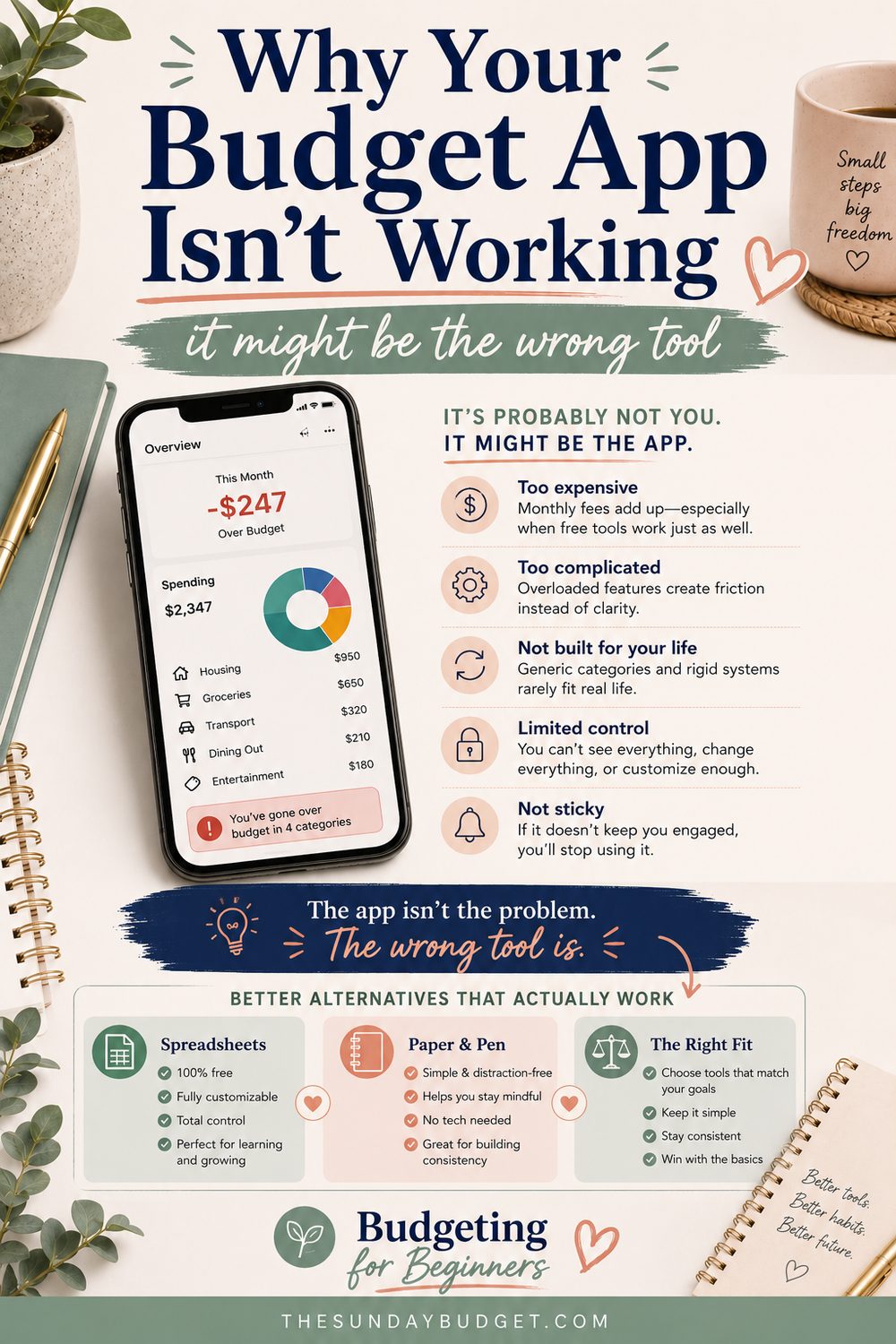
Apps often fail for one of four reasons:
- The app tracks but the user never sets category decisions. Charts explain the past but do not control the next purchase.
- Automatic categorization creates false confidence. Incorrect data goes unreviewed.
- The connection breaks or duplicates transactions. The user waits for the software instead of reconciling manually.
- The subscription continues after the habit stops. A budgeting tool becomes another unused recurring charge.
An app can still be the best choice. It simply needs a defined weekly action: review imports, correct categories, check what remains, and update the coming week.
Privacy questions to ask before connecting accounts
When a budgeting app receives financial data, access may involve the app and a separate data aggregator. The CFPB advises consumers to understand what data is accessed, how it is used, whether access continues, and how to revoke it. Deleting an app from a phone does not necessarily end data sharing. Review the CFPB's guidance on sharing financial data.
Before connecting an account, check:
- Which accounts and data fields will be accessed?
- Is access read-only, or can the service initiate transactions?
- Does the connection use the financial institution's authorization screen, or ask for credentials directly?
- Is a separate data provider involved?
- How long is transaction history retained?
- Is data used for advertising, product recommendations, underwriting, or other purposes?
- Can access be revoked from the bank as well as the app?
- Can stored data be exported and deleted?
- What happens to the data when the account or subscription closes?
No short privacy label answers every question. Read the current policy and account-connection screen for the actual product.
Budget apps fit best when
- automatic transaction collection removes the biggest barrier;
- phone access matters throughout the day;
- the household will review imported data rather than trust it blindly;
- current pricing is worth the time saved;
- data-sharing terms are understood and acceptable; and
- the tool supports the planning method you intend to use.
Spreadsheets: visibility and flexibility with maintenance
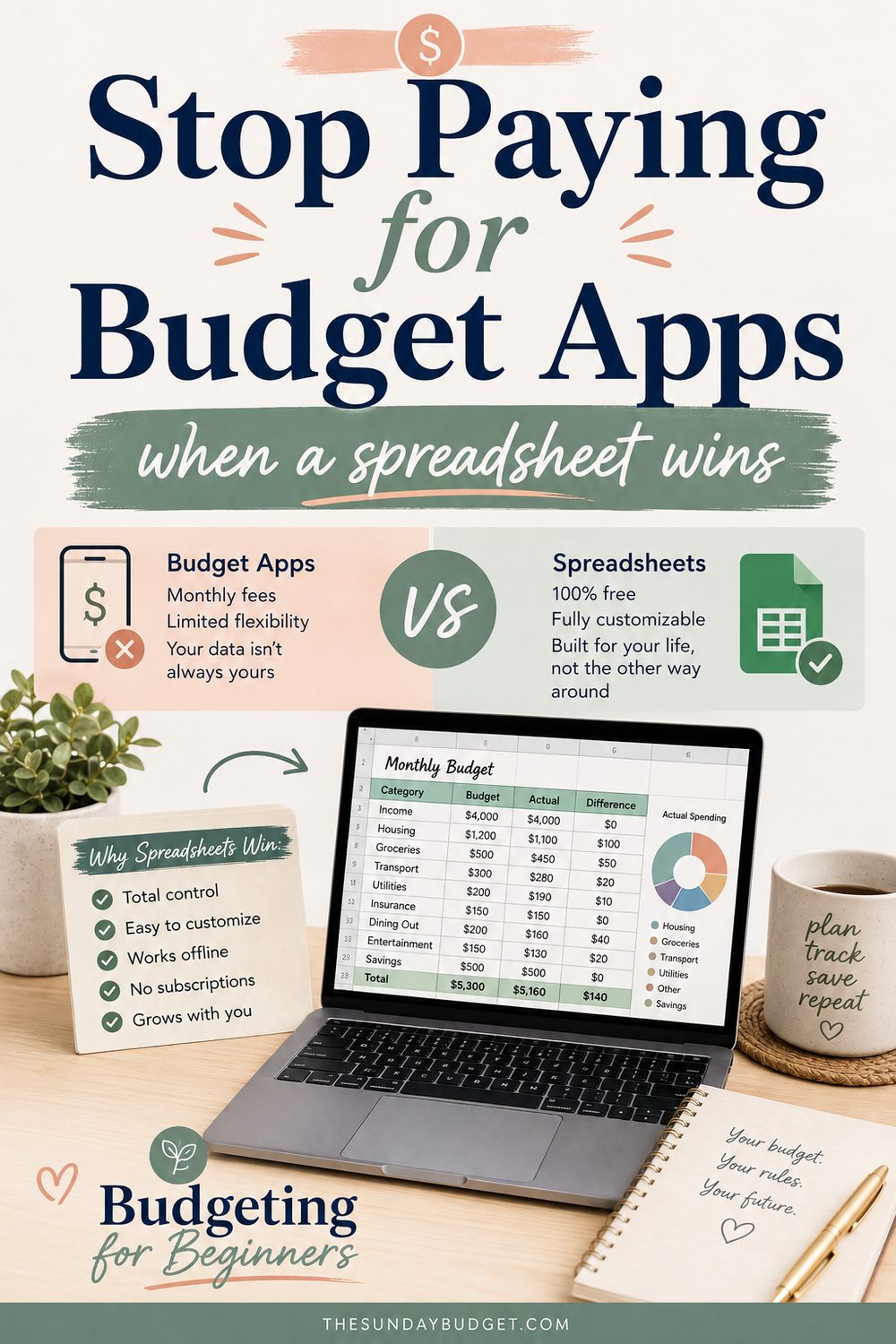
A spreadsheet can be a blank workbook, a custom system, or a prebuilt template. It can live locally on one computer, in encrypted storage, or in a cloud service shared across devices. Those choices affect privacy, backup, collaboration, and access.
What spreadsheets do well
Spreadsheets make calculations and assumptions visible. You can define categories, plan multiple months, create paycheck views, model debt payments, track sinking funds, and adjust formulas to match unusual income or household arrangements.
They also make it possible to separate planning from banking. A budget can operate without giving a third-party budgeting service ongoing account access.
For people who learn by working with numbers directly, manual review may improve awareness. That is a personal benefit, not a guarantee. If manual entry causes avoidance, the theoretical insight has no value.
Cloud spreadsheet versus local spreadsheet
Cloud spreadsheet: Easier access across phones and computers, automatic saving, version history, and collaboration. Privacy and availability depend on account security, sharing settings, the provider, and internet access.
Local spreadsheet: Can remain offline and under direct file control. The user is responsible for backups, device security, software compatibility, and safe file transfer.
Neither is automatically “private.” A cloud file shared with a public link can expose information. A local file on an unencrypted laptop with no login can also be exposed. Choose the storage model you understand and will maintain.
Where spreadsheets can fail
- The workbook becomes a hobby instead of a budget. Hours go into colors and formulas while transactions remain outdated.
- Manual entry accumulates. Several weeks of missing data turn the next review into a large task.
- A formula or row is changed accidentally. Totals become unreliable.
- The file has no backup or version history. One damaged device or overwritten formula removes the record.
- Phone use is uncomfortable. The budget is inaccessible at the moment of a purchase.
The answer is not maximum automation. It is a maintenance rule: protect formula cells where possible, keep the category structure simple, update on a schedule, and test backups.
A practical spreadsheet workflow
Use three layers:
- Plan: Income, categories, bills, savings, and debt decisions for the month.
- Log: Date, description, amount, account, and category for actual transactions.
- Review: Planned, actual, remaining, and upcoming obligations.
Importing a transaction file from a bank may reduce typing, but inspect the file and the spreadsheet process before using an unfamiliar template or add-on. Avoid storing bank passwords, full card numbers, Social Security numbers, or security answers in the workbook.
Spreadsheets fit best when
- customization or multi-month planning matters;
- the user is comfortable reviewing rows and formulas;
- ten to twenty minutes of weekly maintenance is realistic;
- the household wants a file it can export and preserve;
- manual entry or controlled imports are acceptable; and
- device access and backups are understood.
Paper budgeting: focus and physical limits
Paper can mean a notebook, printed worksheet, calendar, ledger, cash envelopes, or a combination. It removes software notifications and makes the budget physically visible.
What paper does well
Paper creates a deliberate pause. Writing category limits and recording spending can be useful for people who think more clearly away from screens. A page on the refrigerator or an envelope in a wallet can also make a spending boundary visible at the exact decision point.
Paper does not require a subscription, account connection, compatible device, or internet access. It can also be adapted immediately with a new column or page.
Where paper can fail
- Every total depends on manual calculation. Errors can carry into the remaining amount.
- A single notebook becomes the only copy. Loss, damage, or theft can remove the record.
- Shared access is awkward. Two people may spend without seeing the same updated total.
- Long-term comparison takes work. Trends require recopying or calculating across pages.
- Sensitive information may be visible. A notebook on a desk is not private merely because it is offline.
Paper works best when the system stays compact. Track the categories that influence decisions rather than recreating a 14-tab digital workbook by hand.
A practical paper workflow
Use one monthly planning page, one bill calendar, and one weekly spending page.
- The monthly page assigns income.
- The bill calendar shows due dates and which paycheck covers each bill.
- The weekly page tracks only categories that change frequently.
Use a calculator for totals and photograph completed pages if a backup is useful. Store pages securely and avoid writing full account or card numbers.
Paper fits best when
- screen fatigue is a major barrier;
- finances and accounts are relatively simple;
- handwriting creates a review ritual the user enjoys;
- cash envelopes or physical limits are central;
- digital accessibility is poor; or
- a visible household page improves follow-through.
Detailed decision factors
1. How much transaction volume do you have?
A household with several cards, many subscriptions, and dozens of weekly transactions may benefit from imports. A household with one account and ten weekly purchases may find manual entry simple.
Count a normal week's transactions before choosing. Do not assume your finances are “too complex” without measuring them.
2. Do you need to budget by month or paycheck?
Monthly budgets show whether total income covers total plans. Paycheck budgets show whether cash is available before each due date.
Any of the three formats can support both, but the setup differs. Choose a tool that displays starting balance, income before the next payday, bills due, essentials, and ending balance without requiring a workaround you dislike.
3. Will more than one person use it?
For couples or shared households, define:
- who enters transactions;
- who can change the plan;
- how shared and personal spending are separated;
- when both people review it;
- what notifications are useful; and
- how access is removed after a device or relationship change.
Shared cloud files and connected apps can synchronize well, but permissions matter. Paper may work if the budget stays in one agreed location and both people update it consistently.
4. Is income irregular?
Irregular income benefits from scenario planning: a conservative baseline, confirmed income, upcoming obligations, and rules for money above the baseline.
Spreadsheets are strong for multiple scenarios. Apps can work if they support assigning money only after it arrives. Paper can work with a paycheck page for each payment. Avoid a tool that assumes the same monthly income automatically when that is not your reality.
5. What kind of reminder helps you?
Some people respond to push notifications. Others dismiss them automatically. Some need a notebook left on the table; others need a calendar appointment and a computer.
Choose one review cue and one location. More alerts are not necessarily more effective.
6. What is the true annual cost?
Include subscription price, template purchase, software license, bank-connection add-ons, notebooks, printing, and the time required to maintain the system.
A paid app does not need to “save its fee” through spending cuts alone if it provides useful organization and reduces stress. But it should be used. Put the renewal date on the calendar and audit the tool like any other recurring service.
7. Can you export and leave?
Before building years of history, test how to export transactions, budgets, categories, and reports. Check the file format and whether it is understandable outside the product.
For spreadsheets, test opening the backup. For paper, decide which pages must be retained. Portability matters because products change, files become incompatible, and personal preferences evolve.
8. What accessibility does the system require?
Consider screen-reader support, keyboard navigation, text size, color contrast, motor demands, cognitive load, language, device availability, and whether handwriting is comfortable.
Automation may reduce entry burden. Paper may reduce screen burden. A spreadsheet may offer larger text and a custom layout. Choose based on the user's actual access needs rather than a generic claim that one format is simpler.
Security checklist for every digital budget
Whether using an app or spreadsheet:
- use a unique password for the budgeting, cloud-storage, and primary email accounts;
- enable multifactor authentication where available;
- secure every device with a passcode and current updates;
- review sharing permissions and remove old collaborators;
- avoid public links for files containing financial details;
- do not store banking credentials or verification codes in budget notes;
- revoke financial-data access for services you stop using;
- export or back up important history; and
- report unfamiliar financial transactions promptly to the institution.
CISA recommends multifactor authentication because a password alone may be compromised; stronger options are preferable when available. Review its MFA guidance. Never share a verification code with someone who contacts you unexpectedly.
Security checklist for paper budgets
- record only the last few digits needed to distinguish accounts;
- do not write PINs, passwords, or full card numbers;
- store the active notebook away from visitors and public areas;
- shred pages before disposal if they contain sensitive details;
- photograph or copy only the pages whose loss would matter; and
- secure any digital photos with the same care as a spreadsheet.
Offline does not mean risk-free. It changes the risk from remote access to physical access, loss, and damage.
Three hybrid systems that work well
Hybrid 1: App-first
Use a connected app for imports, category limits, and alerts. Hold a weekly review to correct imports and make decisions. Keep a short paper list of upcoming unusual costs if seeing them physically helps.
Best for: High transaction volume and strong phone habits.
Failure prevention: Do not let imported transactions replace the weekly decision step.
Hybrid 2: Spreadsheet-first
Use a spreadsheet for the plan, history, sinking funds, and debt. Use bank and card apps only to confirm balances and collect transactions. Add one paper envelope or visible category card where a hard spending stop is useful.
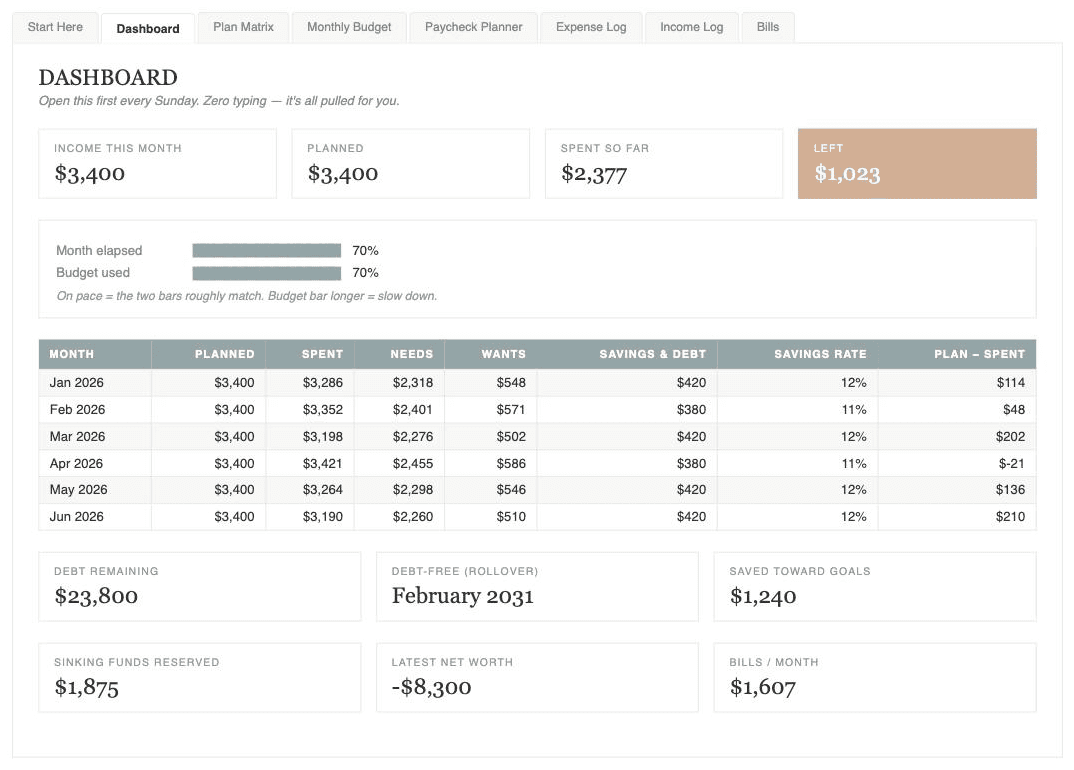
Best for: People who value customization, multi-month views, and file ownership.
Failure prevention: Schedule one short entry session each week instead of waiting for month-end.
Hybrid 3: Paper-first
Plan the month and track flexible categories on paper. Use a bank app for balance checks and transaction verification. Enter only month-end totals into a simple spreadsheet if long-term trends are useful.
Best for: People who engage more reliably with handwriting but still want a backup or annual view.
Failure prevention: Keep the paper system to a few pages and use a calculator for reconciliation.
Which tool fits common situations?
| Situation | Strong starting option | Why |
|---|---|---|
| Many daily card transactions | Connected app | Reduces entry volume |
| Privacy-conscious and comfortable with files | Local spreadsheet or paper | Avoids ongoing app account access |
| Wants phone convenience without linking accounts | Manual app | Digital calculations with manual data control |
| Irregular income or scenario planning | Spreadsheet | Flexible paycheck and forecast views |
| Cash envelope user | Paper or manual app | Clear category limits at purchase time |
| Shared household needing live updates | Connected app or shared cloud spreadsheet | Synchronized access with permissions |
| Screen fatigue | Paper | Physical planning and review |
| Complex debt and sinking funds | Spreadsheet or feature-rich app | Automated calculations and history |
| Frequently abandons detailed systems | Simple app or one-page paper budget | Lower maintenance burden |
These are starting points, not rules. Accessibility, comfort, and household agreement can change the answer.
A 30-day tool test
Do not migrate years of history immediately. Test one normal month.
Before day 1
- Choose one primary tool.
- Enter current income, bills, and five to ten useful categories.
- Set one weekly review appointment.
- Write down the current annual cost and cancellation date.
- Decide what success means: current categories, no missed bills, or a completed weekly review.
At each weekly review
- confirm transactions and balances;
- correct categories or calculations;
- check what remains;
- identify bills due before the next review;
- record time spent maintaining the tool; and
- note one frustration rather than switching immediately.
At day 30, score the tool from 1 to 5
| Question | Score |
|---|---|
| Did I open it every week? | /5 |
| Could I see what was safe to spend? | /5 |
| Were the numbers current and trustworthy? | /5 |
| Was maintenance reasonable? | /5 |
| Did the privacy and security setup feel acceptable? | /5 |
| Could another household user understand it? | /5 |
| Would I use it for another three months? | /5 |
A low score does not always mean choosing a different format. Sometimes the category structure is too detailed, the review time is wrong, or the account connection needs repair. Fix one source of friction and test again before rebuilding everything.
Where the Sunday Budget planner fits
The free Sunday Budget planner is a spreadsheet-first option for readers who want the formulas and tabs already built. It includes monthly planning, an expense log, bills, paycheck planning, sinking funds, debt payoff, net worth, challenges, and dashboard views.
It is not the right tool for everyone. It still requires data entry, a spreadsheet application, secure file handling, and regular review. If automatic imports are the only way you will keep the numbers current, use an app or hybrid system instead. If handwriting is the habit you maintain, paper is the better choice.
Frequently asked questions
Are paid budgeting apps worth it?
They can be when automation, support, shared access, or a specific planning workflow creates enough value. Review current pricing, renewal terms, export options, account access, and actual usage. Cancel and revoke data access when the service no longer earns its place.
Is manual entry outdated?
No, but it is a real maintenance cost. Some people value the review created by manual entry; others postpone it until the budget is useless. Choose based on behavior, not whether the method appears modern.
Is a spreadsheet safer than an app?
Not automatically. Security depends on device protection, account security, sharing settings, backups, encryption, add-ons, and user behavior. A local spreadsheet avoids ongoing budgeting-app access to accounts, but a poorly secured file can still be exposed or lost.
Can I use only my bank's app?
Yes, if it supports enough planning for your needs or you pair its transaction view with a simple plan elsewhere. Many bank apps are strongest at balances and transaction history; verify the features in your institution's current app.
Should couples use one budget or two?
Use one shared plan for shared income, bills, goals, and agreed personal spending, while preserving appropriate individual account access and autonomy. The tool should make ownership and permissions clear rather than forcing every account into one login.
How often should I change budgeting tools?
Change when the current tool no longer supports the job, access needs, cost, or security requirements—not whenever a new interface appears. Export history, revoke old connections, and close subscriptions deliberately.
Choose the smallest system you will review
Pick the format that makes the next weekly review easiest, not the format that makes setup most exciting.
Give it four honest reviews. If it helps you plan, track, compare, review, and remember with acceptable effort and risk, it works. If it does not, change one part of the system or choose another tool without treating the experiment as a personal failure.

Written by
I fixed my own money with a spreadsheet and a Sunday morning, and now I build the tools I wish I’d had. I manage a dental practice in Greensboro, North Carolina, and I have never once told anyone their problem was the coffee.


